If your Facebook group has gone quiet and no one’s posting anymore, you’ve probably thought about deleting it.
But the moment you try, it feels like the delete option is playing hide and seek. You open every menu, click every setting, and still can’t find where it is. It’s enough to make anyone frustrated.
The truth is, Facebook doesn’t make it very obvious. So if you’re wondering how to delete a Facebook group, you’re definitely not alone.
Short Summary
- Only the group’s creator can permanently delete a Facebook group; other admins can only archive or close it.
- To delete on desktop or mobile, remove all members first, then leave the group to confirm deletion.
- Messenger groups and group pages require similar steps, removing members and leaving or using page settings to delete.
- Instead of deleting, you can archive the group or use Social Champ to manage, schedule posts, and track Facebook engagement to keep your community active.
In this simple, step-by-step guide, I’ll show you exactly how to remove your group on both desktop and mobile without wasting time. Plus, you’ll see how using the right social media tools can make managing your pages and communities way easier, so you don’t have to go through this confusion again.
Let’s clean up your Facebook space and say goodbye to that inactive group once and for all.
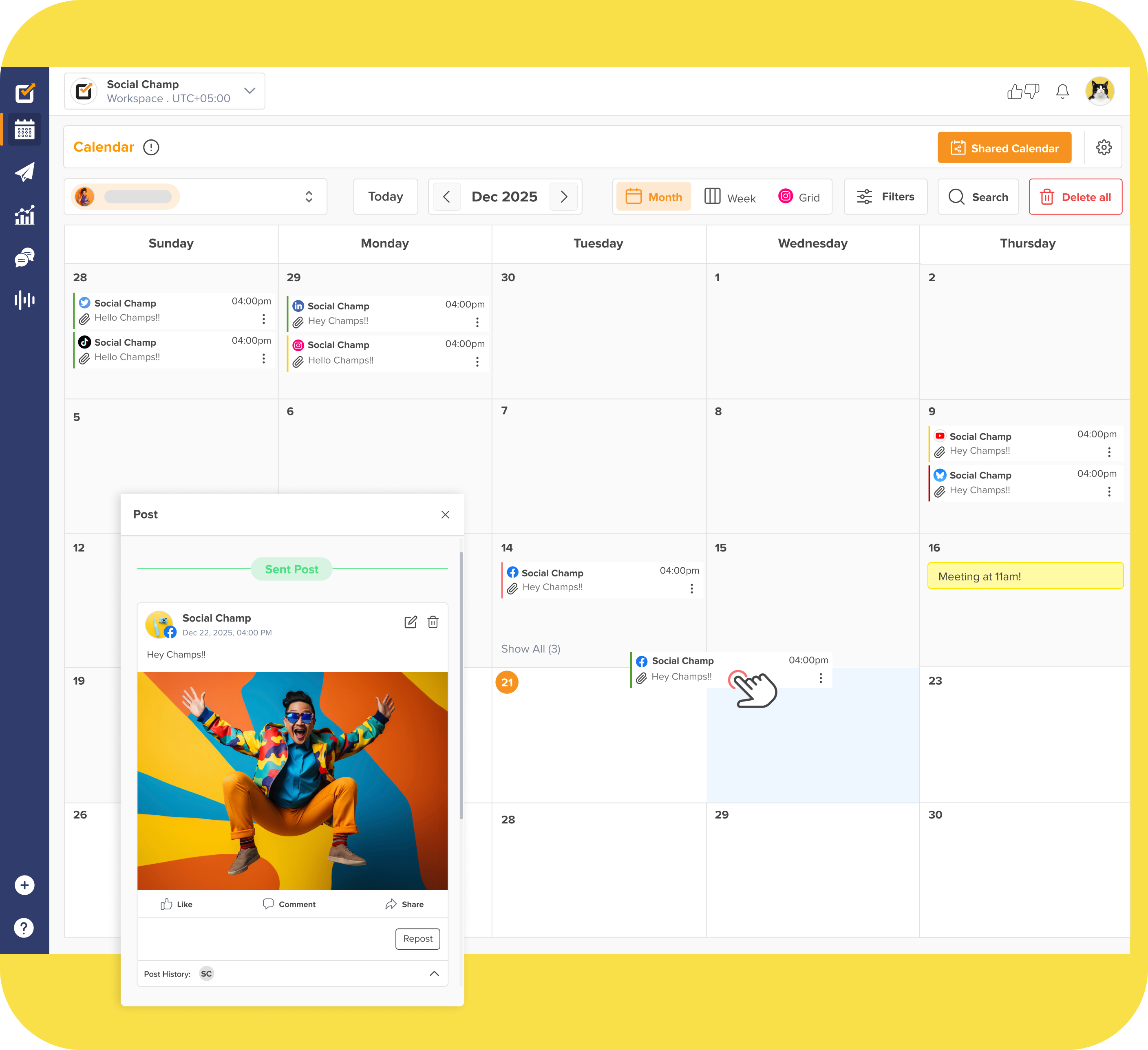
Tired of Old Facebook Groups Cluttering Your Feed?
Keep your communities organized and active with Social Champ’s all-in-one social media tools for smarter group and page management.
Why and When to Delete Your Facebook Group
If your Facebook community feels like a ghost town with no one posting or engaging anymore, you’ve probably wondered if it’s time to delete a Facebook group.
Maybe you started it with big plans, but over time, people stopped showing up, or you made a new group that works better. It happens to many group owners, especially those managing multiple pages or trying Facebook group marketing for the first time.
Sometimes, groups become full of spam or off-topic posts, and managing them starts to feel like more work than it’s worth.
When that happens, it’s often better to delete an FB group and make space for something new. If your group’s purpose has faded, it’s completely okay to delete a group on Facebook and move on.
Before you decide to delete a Facebook group, remember that only the group’s creator or original owner can remove it permanently.
Other admins can close or archive a Facebook group, but they can’t permanently delete it. So if your group is quiet, messy, or doesn’t match your goals anymore, that’s when deleting a Facebook group makes sense.
Also, before you hit delete, explore Facebook group badges to see if recognizing active members could revive engagement.
Sometimes, small efforts like these can breathe life back into your group without needing to delete the group on Facebook completely.
Featured Article: Social Media Manager Burnout is an Industry Crisis (And How to Overcome It)
How to Delete a Facebook Group on Desktop
Here is a very simple, step-by-step guide to delete a Facebook group on desktop.
- Log in to Facebook on your web browser and click Groups from the left menu.
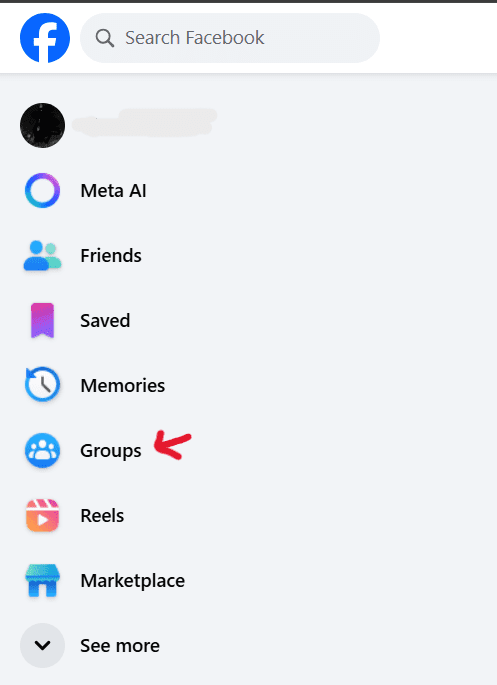
- Click Your Groups and pick the group you want to delete.
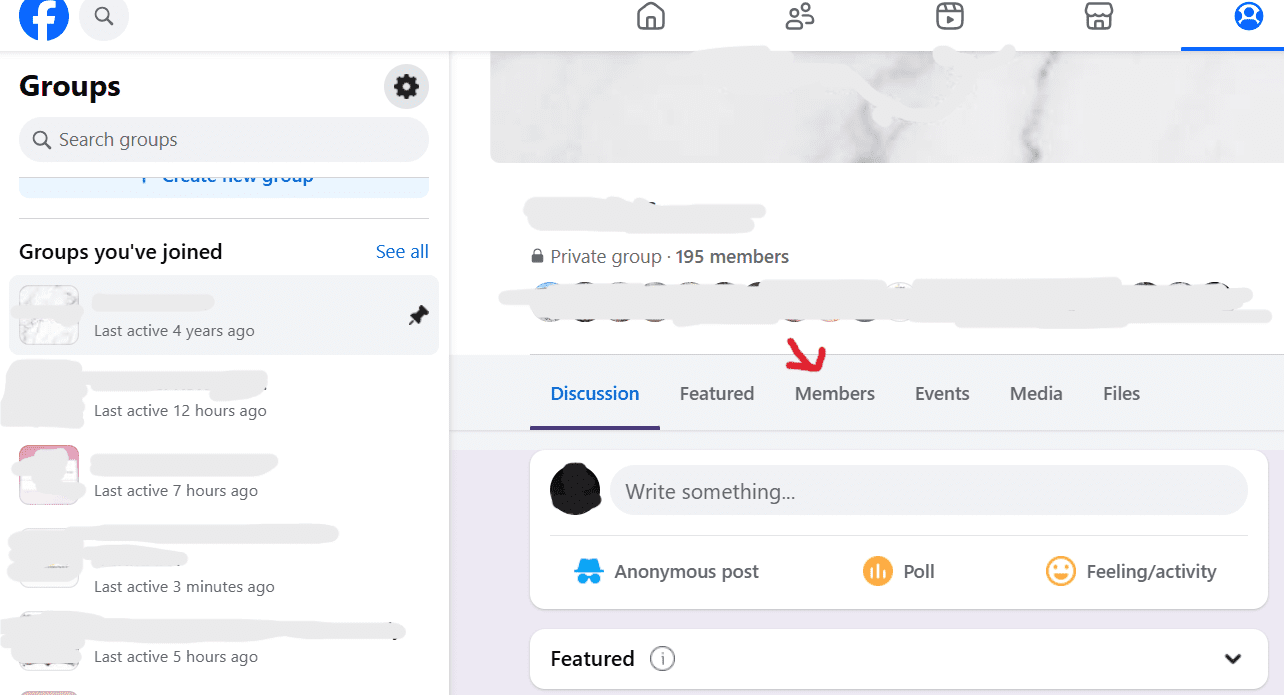
- Open the group and click Members to see everyone in the group.
- For each person in the list, click the three dots next to their name and choose Remove member. Confirm when asked. Repeat until no other members are left.
- When you are the only person left, find your name in the members list. Click Joined or the three dots next to your name. Then, choose Leave group. When Facebook asks to confirm, select Delete group on Facebook and confirm. This will remove the group forever.
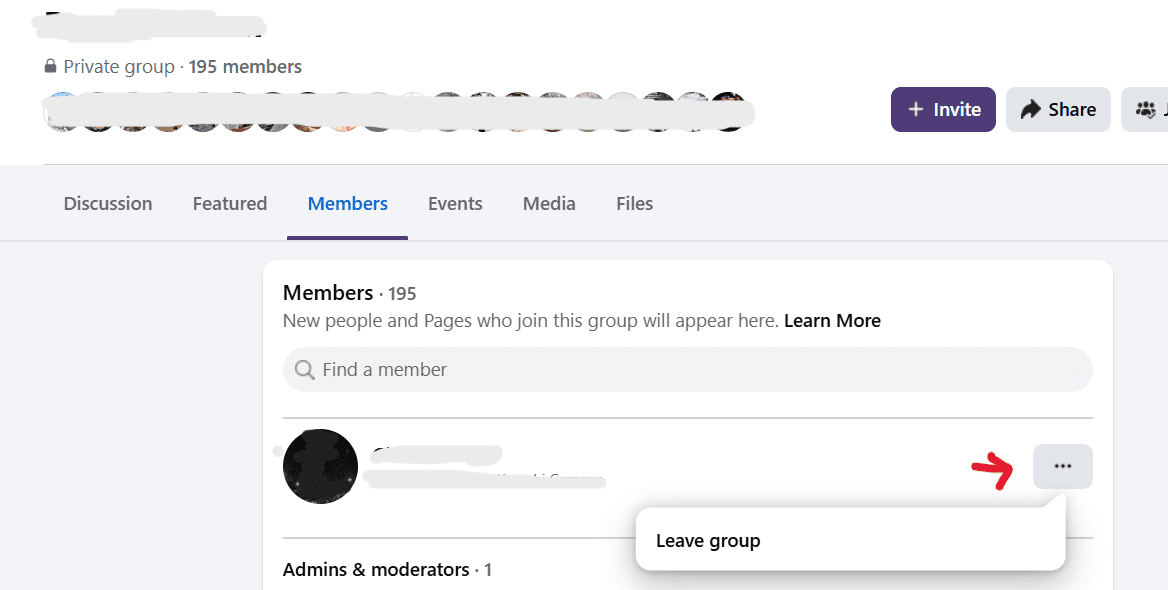
Important note: Facebook only lets the group creator delete a group. The creator must remove every member first and then leave to delete the group. Other admins cannot delete the group. They can only archive or close it. This is why step 4 is required.
How to Delete a Facebook Group on Mobile (iOS & Android)
Deleting a Facebook group on your phone is almost the same as doing it on a computer. The buttons just look a little different. Here’s how you can do it step by step:
Step 1: Open the Facebook app on your phone and tap the Groups icon
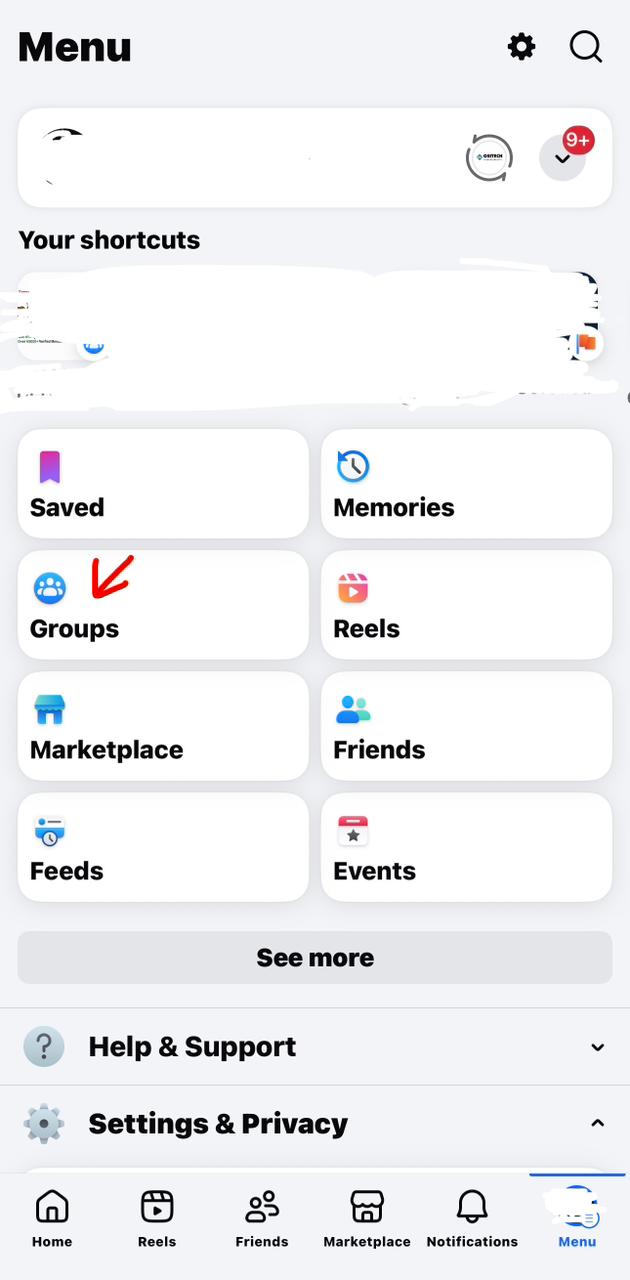
Step 2: Tap Your Groups and choose the group you want to delete
.

Step 3: Once you’re inside the group, tap the group name at the top. Then, tap See All to view all members.
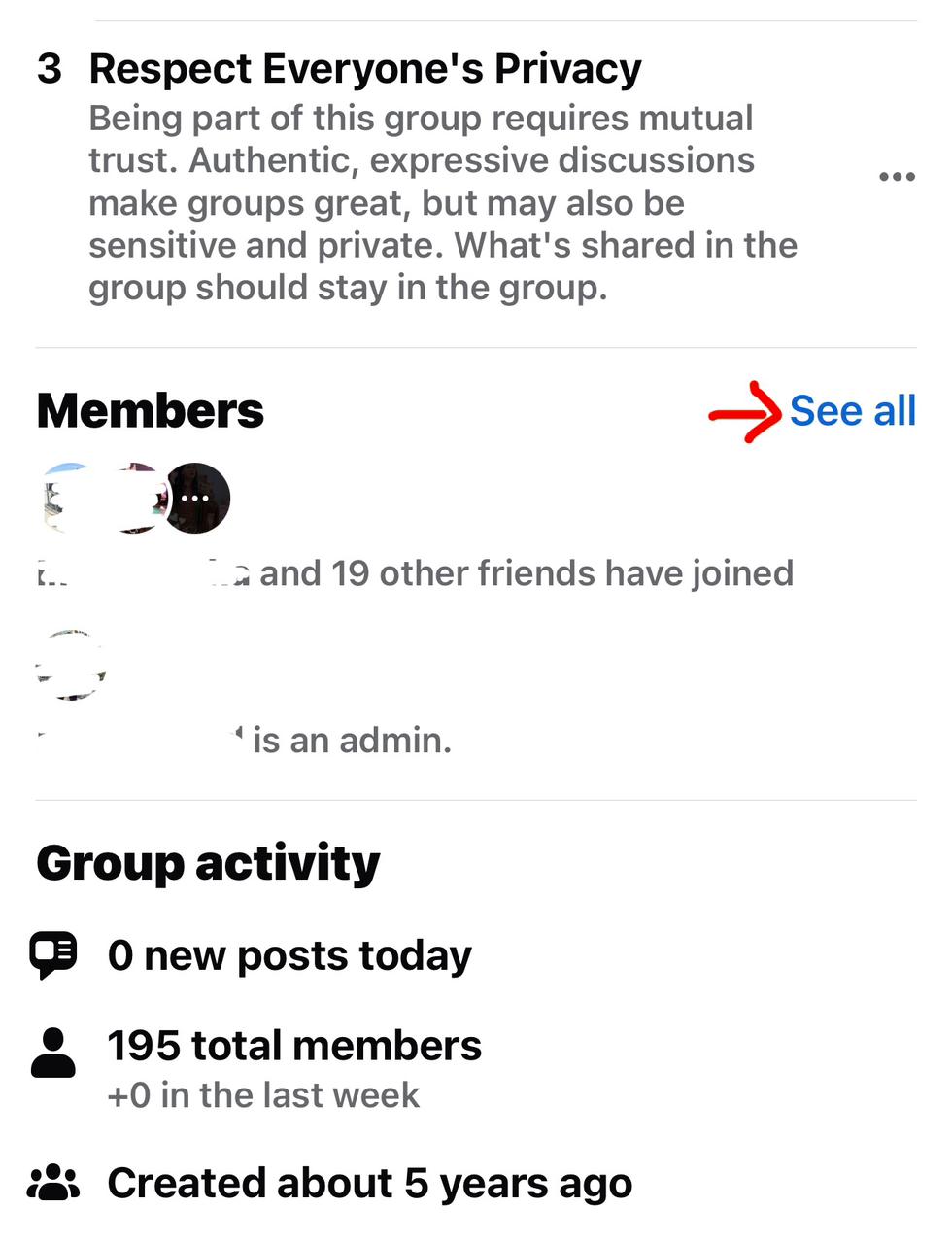
Step 4: Next to each member’s name, tap the three dots (⋯) and select Remove from Group. Keep doing this until you’re the only person left in the group.
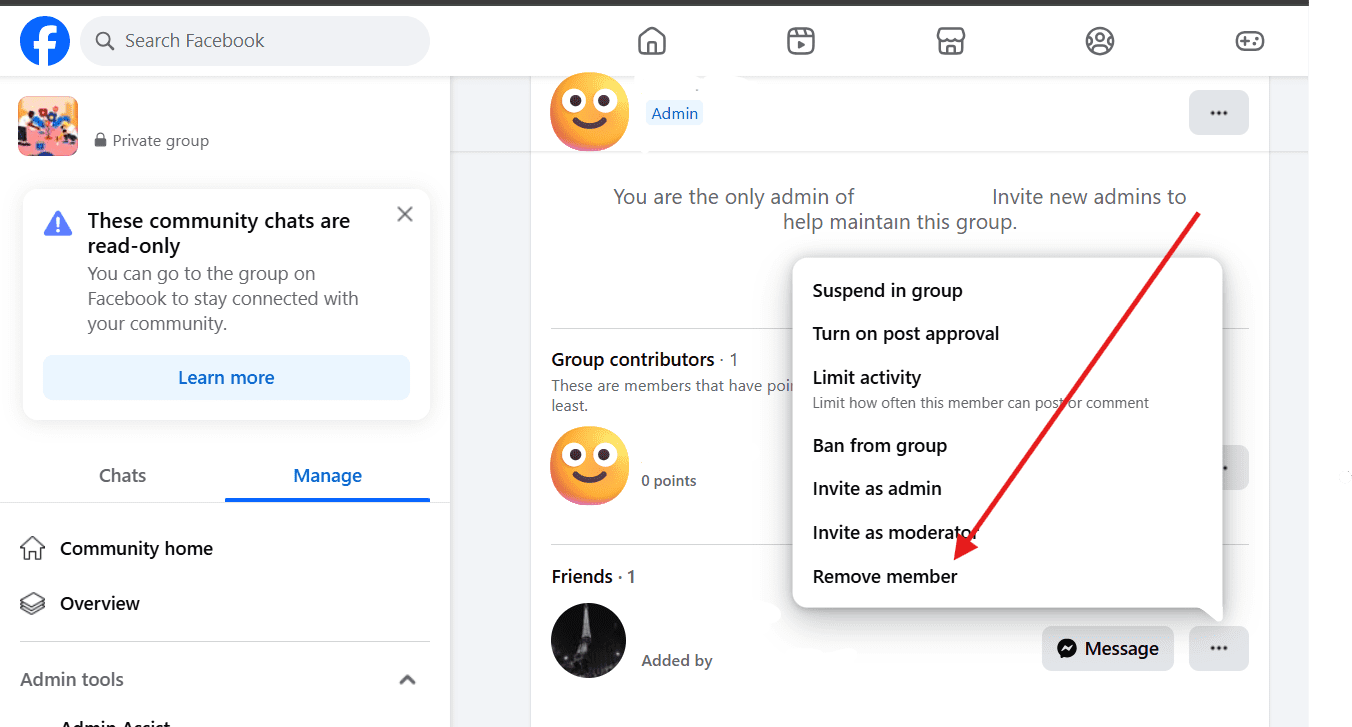
Step 5: When you’re the last member, tap the Manage or gear icon (⚙️) at the top right.
Step 6: Scroll down and tap Delete Group, then confirm when Facebook asks. Your group will be deleted forever.
Important Tip: Only the group’s creator or original owner can delete the group completely. Other admins can only pause or close it, not remove it entirely.
That’s it! You’ve successfully deleted your Facebook group from your phone, whether you’re using iOS or Android.
Ready to Simplify Your Facebook Management?
Use Social Champ’s smart scheduling and automation tools to stay organized, grow faster, and keep your social media stress-free.
How to Delete a Group on Facebook Messenger?
If you’ve ever made a group chat on Messenger that’s now full of old messages or inactive people, you might want to delete it. But here’s the thing, Messenger doesn’t have a direct “Delete Group” button. Instead, you can remove all members and leave the chat to make it disappear for you. Here’s how to do it easily:
Step 1: Open the Messenger on your laptop and go to the group chat you want to delete.
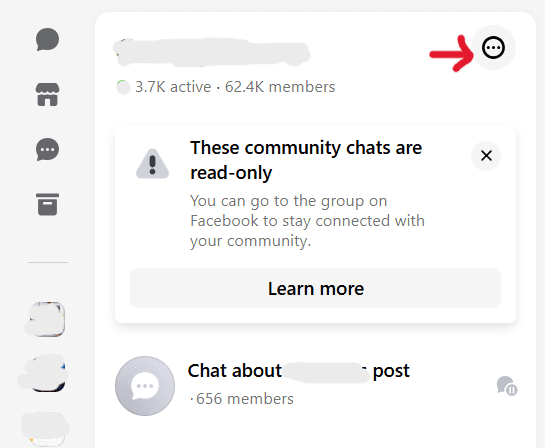
Step 2: Tap the group name or the “…” 3 dots at the top of the screen to open the members option.
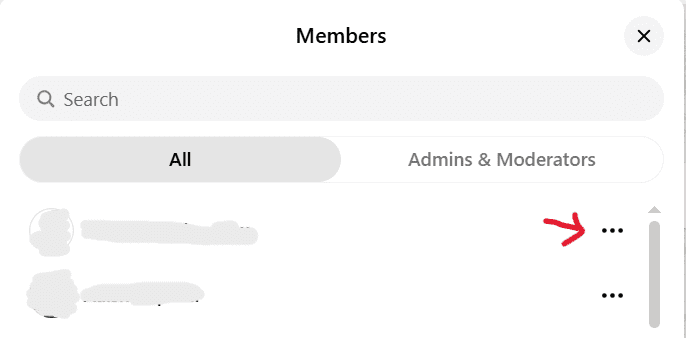
Step 3: Scroll down to the Members section. Tap each member’s name, then select Remove from Group. Repeat this for everyone until you’re the last one left.
Step 4: Once all members are removed, tap your own name and choose Leave Chat.
Step 5: Messenger will ask you to confirm. Tap Leave again. The group chat will be deleted from your Messenger, and since no one’s left, it’ll be gone for everyone else too.
Quick Tip: You can’t fully delete a Messenger group like on Facebook, but once everyone leaves, the group automatically disappears. This is the only way to clear it completely.
Featured Article: 35 Powerful Social Media Hacks to Take Your Brand to the Next Level in 2025
How to Delete a Facebook Group Without an Administrator?
Sometimes, you might find yourself in a closed Facebook group with no active admin; maybe they left, deactivated their account, or just stopped managing it. If you want to take control and delete the group, don’t worry, there’s still a way to do it.
Before you start, you can check out what to post on Facebook if you’re managing multiple groups and want to keep them engaging before deciding to delete any.
But if you’re sure about deleting the group, here’s how you can delete a Facebook group without being an admin:
Step 1: Open the Group
Go to the Facebook group you want to delete. If the previous admin is no longer available, Facebook automatically assigns the oldest member as the new admin.
Alt Text: Facebook Group Page Showing Members List and Settings Icon
Step 2: Check Your Role
Click on the Members tab to make sure you’re listed as the admin. If you see “Admin” next to your name, that means you now have full control of the group.
Alt Text: Admin Role Displayed Under Facebook Group Members Tab
Step 3: Remove Members One by One
Go to the Members tab, click the three dots next to each member’s name, and choose “Remove from Group.” You’ll need to do this for everyone in the group.
If you’re managing many groups, tools like Facebook post scheduler can help you save time by automating posts so you can focus on group management.
Alt Text: Removing Members From a Facebook Group Through the Members List
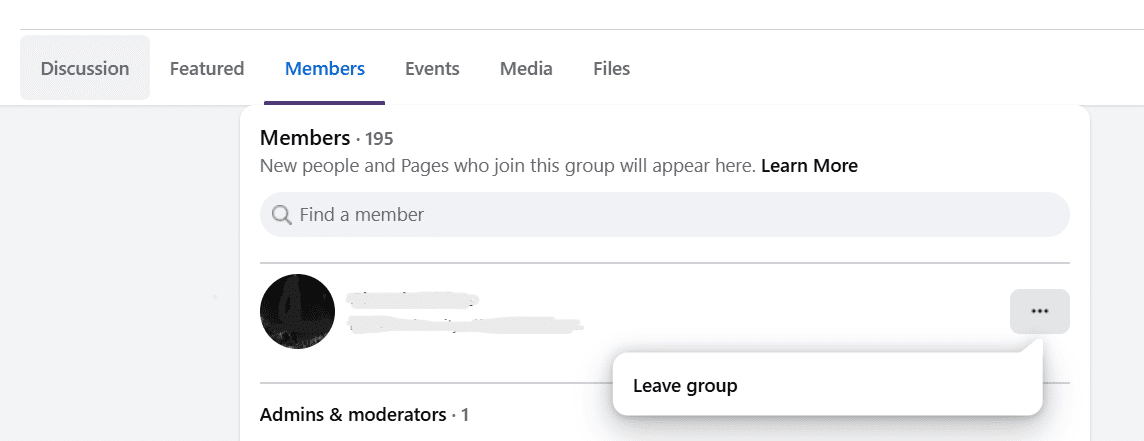
Step 4: Leave the Group Yourself
Once all members are removed, go back to your name, click the three dots, and select “Leave Group.” When you leave, Facebook automatically deletes the group since no one else is left in it.
If your group feels inactive, it might not need deleting; maybe it just needs better posting consistency.
You can read how often should you post on Facebook to get a better idea.
Want to Manage Facebook Groups Without the Hassle?
Plan, schedule, and organize everything from one place using Social Champ’s powerful automation tools for smoother social media management.
After Deletion: What Happens to Your Facebook Group
Once you delete a Facebook group, it’s gone for good. Everything inside the group, including posts, photos, comments, files, and even the member list, is permanently removed from Facebook. When you delete a group on Facebook, there’s no way to get it back later, so make sure you’re completely sure before confirming.
Additionally, when you delete an FB group, Facebook doesn’t notify the members. They’ll just notice that the group no longer exists or can’t be found. This means that once you delete a Facebook group, all the content and discussions disappear forever.
If you think you might need the data in the future, try saving or downloading important posts and media before deleting a Facebook group. You can also close a Facebook group instead of deleting it completely if you just want to stop new posts or members.
Understanding how the Facebook algorithm works can also help you decide whether to delete or revive your group, especially if engagement has dropped over time.
You can also explore recent Facebook stats to see if groups like yours are still performing well or if it’s time to move your community elsewhere.
Deleting a Facebook group is permanent, so take a moment to review your options before you delete a group on Facebook or close your Facebook group completely.
Alternatives to Deleting Your Group (Archiving or Using Social Champ)
Before you delete a Facebook group, it’s worth exploring a few safer options. Sometimes, you don’t have to delete a group on Facebook completely.
If your group is inactive or you just need a short break, you can close the Facebook group or archive it instead.
When you archive a group, no new members can join, and existing members can’t post or comment anymore. The group becomes hidden, but all your old posts, photos, and discussions stay safe.
Facebook even suggests that admins archive groups instead of deleting a Facebook group, so you don’t lose valuable memories or data.
If you’re thinking about engagement, you can check out how other group owners boost theirs with Facebook engagement strategies before deciding to delete FB group. Sometimes, improving content consistency and post timing can bring your group back to life.
But if you don’t want to delete a Facebook group and still want to keep it active, Social Champ can make your life easier.

Instead of deleting a group on Facebook, use Social Champ to schedule posts, manage multiple groups and pages, create fun Facebook captions, and stay consistent without stress. It helps you monitor your community’s growth with detailed Facebook metrics so you can track what’s working best.
You can also make your group more engaging by adding fun and interactive Facebook stories. These short updates can help reconnect with your audience and keep your group feeling alive.
So, before you delete a Facebook group, consider archiving it or using tools like Social Champ to grow and manage your community effectively. It’s a smarter way to stay active and avoid losing everything you’ve built.
Say Goodbye to Inactive Facebook Groups
Boost engagement, stay organized, and grow your communities effortlessly with Social Champ’s all-in-one social media management tools.
Conclusion
Learning how to delete a Facebook group can be tricky, especially when your group becomes inactive or no longer serves its purpose. Once you delete a group on Facebook, everything, posts, photos, and files disappear forever.
Before deleting a Facebook group, think about safer options like archiving or closing it. Archiving keeps your content safe while pausing activity, so you can decide later.
If you still want to stay active, try using Social Champ to schedule posts, track engagement, and manage multiple groups easily.
In the end, whether you close a Facebook group, delete an FB group, or keep it going, choose what helps you stay organized and aligned with your goals.